
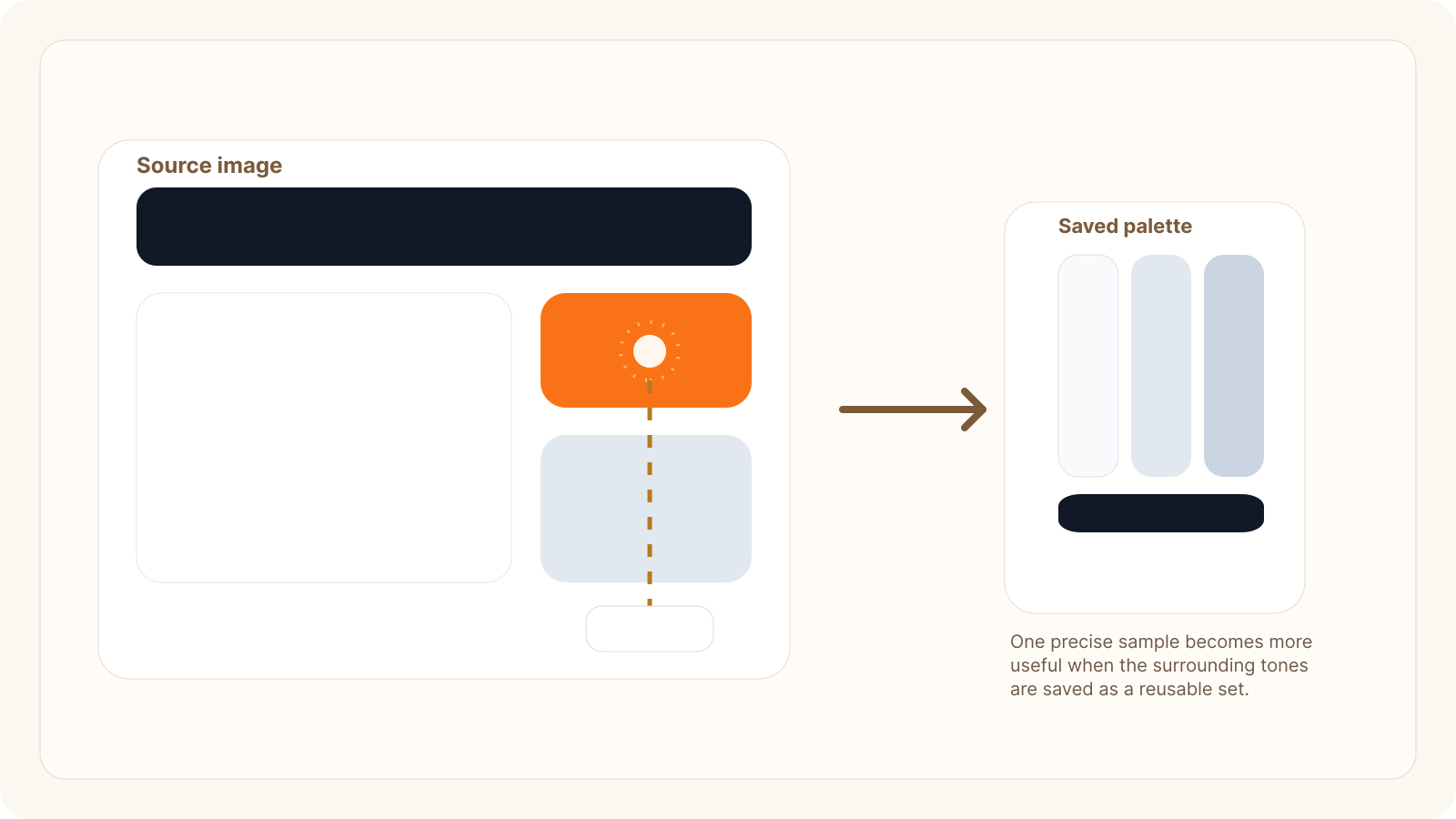
If you need to identify a hex code from an image, the real goal is usually not just finding a color value. It is making that color usable. Designers want to match interface references. Developers want a CSS-ready value. Marketers want consistency across ads, landing pages, and brand assets.
Identify Hexcode is built for that task. Instead of estimating a color by eye, you can upload a screenshot, logo, UI mock, product photo, deck, or reference image, inspect the exact pixel color, and copy the hex value you need. For anyone searching how to identify hex code from image, that is the practical answer: use the image as the source of truth and sample the exact point that matters.
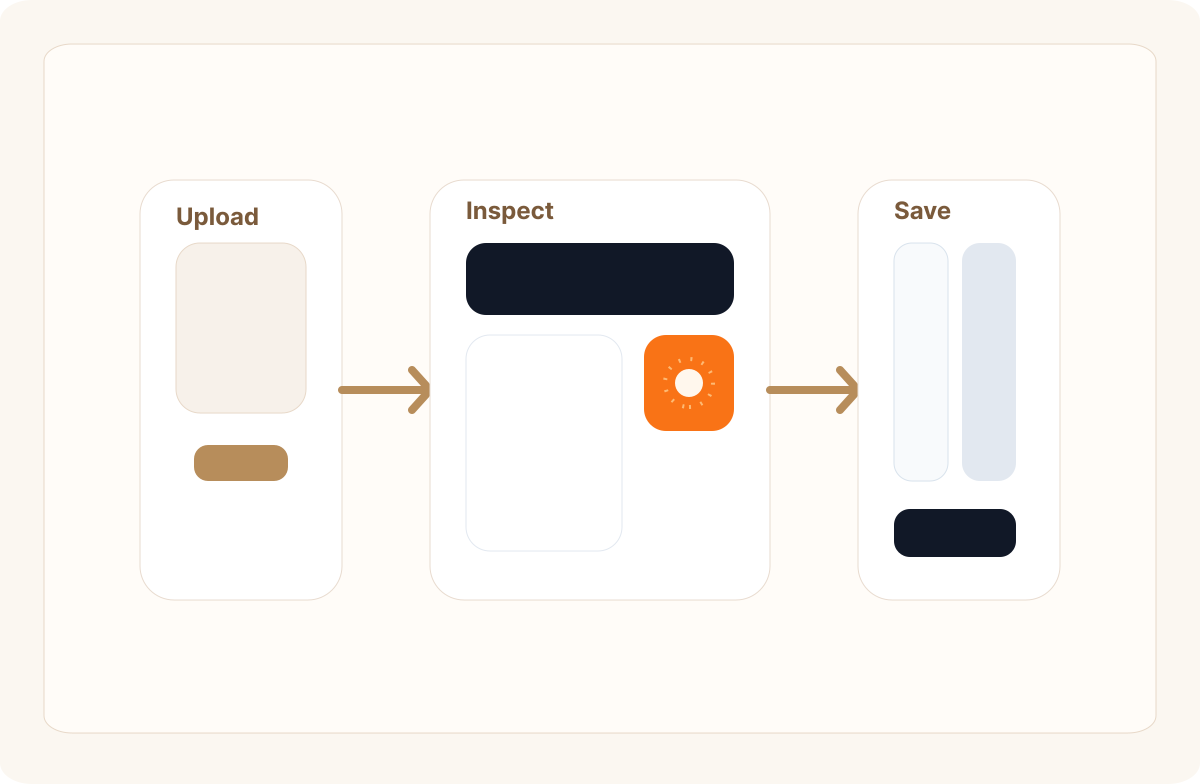
What it means to identify a hex code from an image
A hex code is a six-character color value used in digital design and front-end development, usually written like #1F2937 or #F97316. When you identify a hex code from an image, you are translating a visible color in a screenshot or graphic into a precise code that can be reused in CSS, design systems, brand guidelines, product mockups, or AI prompts.
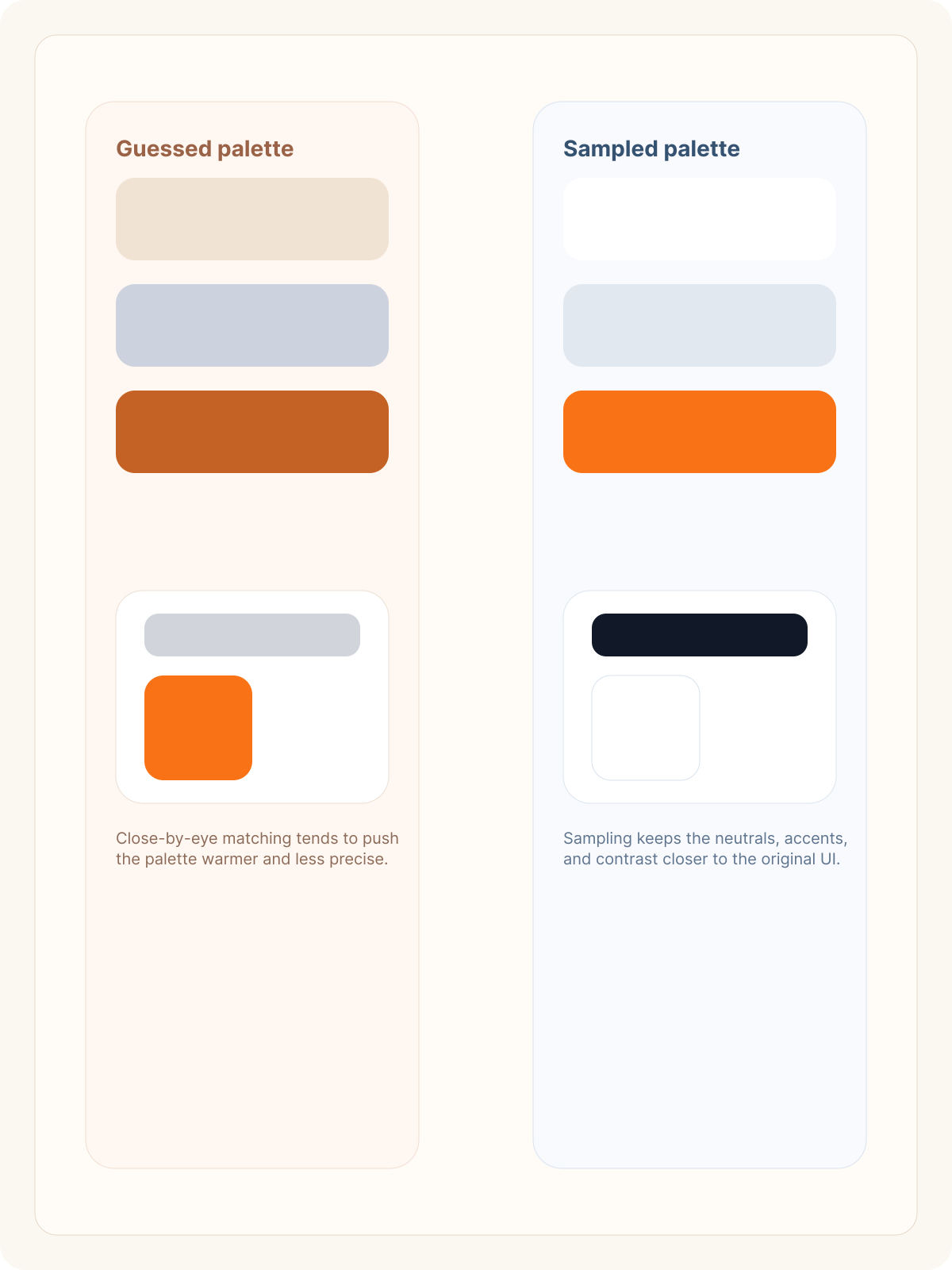
That matters because the same image often contains multiple similar colors. A hero background may look like one blue, but it might actually include several values across gradients, shadows, and overlays. If you guess, the result usually looks close but wrong. If you sample the image directly, you get the exact color value behind the visual.
Step-by-step: how to identify hex code from image
Start with the cleanest version of the image you have. A crisp PNG, original screenshot, design export, or high-resolution JPG will usually give better results than a compressed social post or blurry thumbnail.
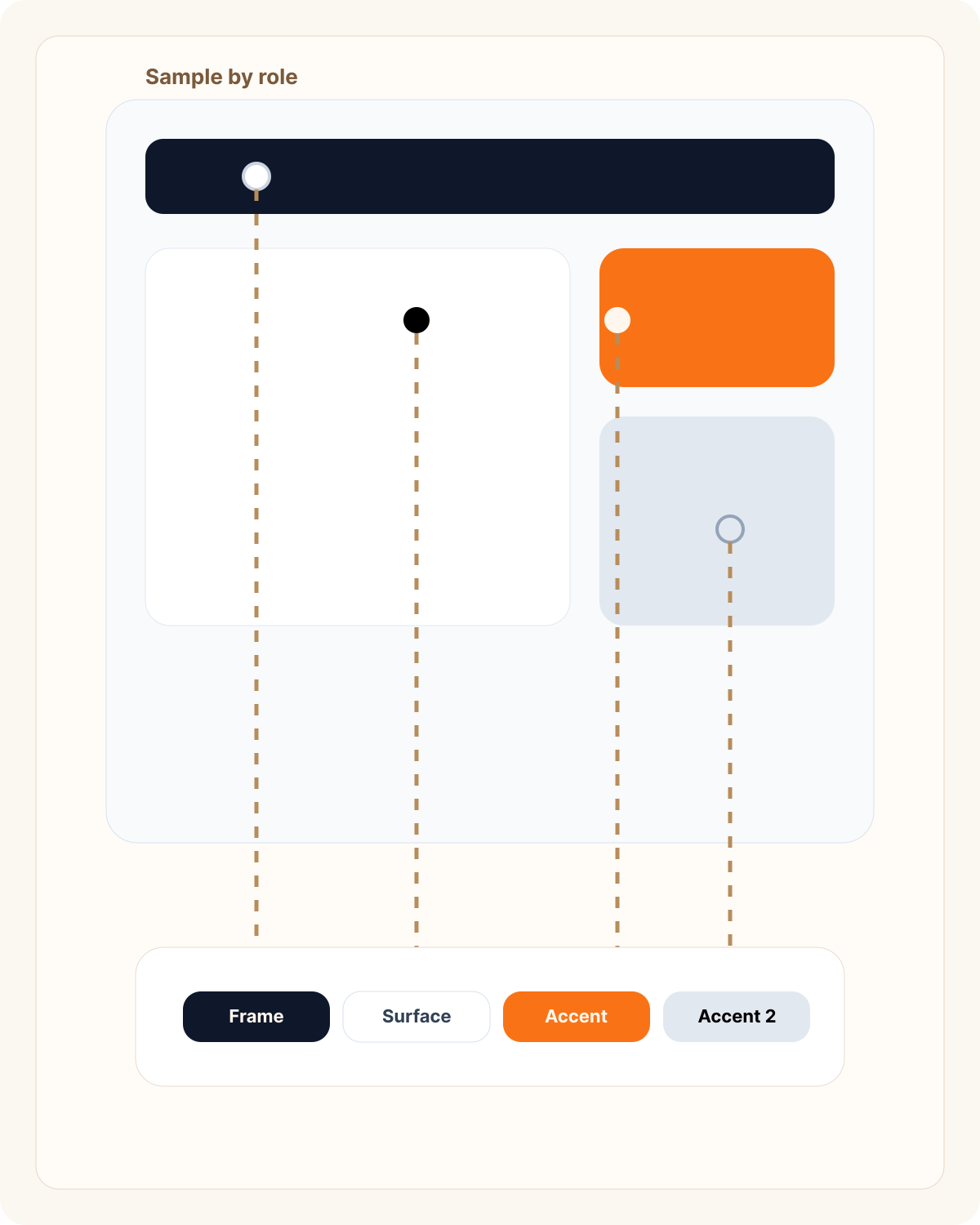
Upload the image into Identify Hexcode and inspect the exact area that carries the color you want to reuse. Do not hover somewhere near the button or card. Sample the actual button fill, card surface, text color, or border color.
Once you identify the hex code from the image, copy it and validate it in context. Drop it into CSS, compare it against neighboring colors, or use it in a prompt for an AI website builder.
Save related colors into a palette while you are there. Most good reference images contain more than one useful value, and keeping the surrounding neutrals and accents together makes the result far more reusable.
Common mistakes when sampling from an image
Sampling compressed or low-quality visuals can produce slightly distorted values, especially in neutrals and gradients. Picking from shadows, overlays, or soft edges can also give you a technically real value that is not the base color you actually need.
Another common issue is treating one sampled accent as if it were a complete palette. In practice, most polished interfaces rely on a small system of background, surface, text, border, and action colors.
Why this workflow is useful for designers, developers, and marketers
Designers can turn inspiration into structured palettes, developers can move sampled values directly into CSS or tokens, and marketers can keep campaign assets aligned with approved visual references.
That is why Identify Hexcode works well for this use case. It supports the real workflow behind the search query, not just the one-time act of color detection.
FAQ
What is the easiest way to identify hex code from image?
Upload the image into a tool that lets you inspect exact pixels and copy the color value directly. That is faster and more accurate than trying to match the color by eye.
Can I identify a hex code from a screenshot?
Yes. Screenshots are one of the most common sources for hex code lookup, especially for product UI, landing pages, ads, and app references.
Why does the sampled color look slightly different from what I expected?
The image may include gradients, shadows, transparency, compression artifacts, or display-related shifts. Sampling a different point in the image can produce a different hex value.
Should I save more than one color from the image?
Usually yes. Most useful references contain a small palette, not just one standalone color. Saving background, text, border, and accent values makes the result much more reusable.