
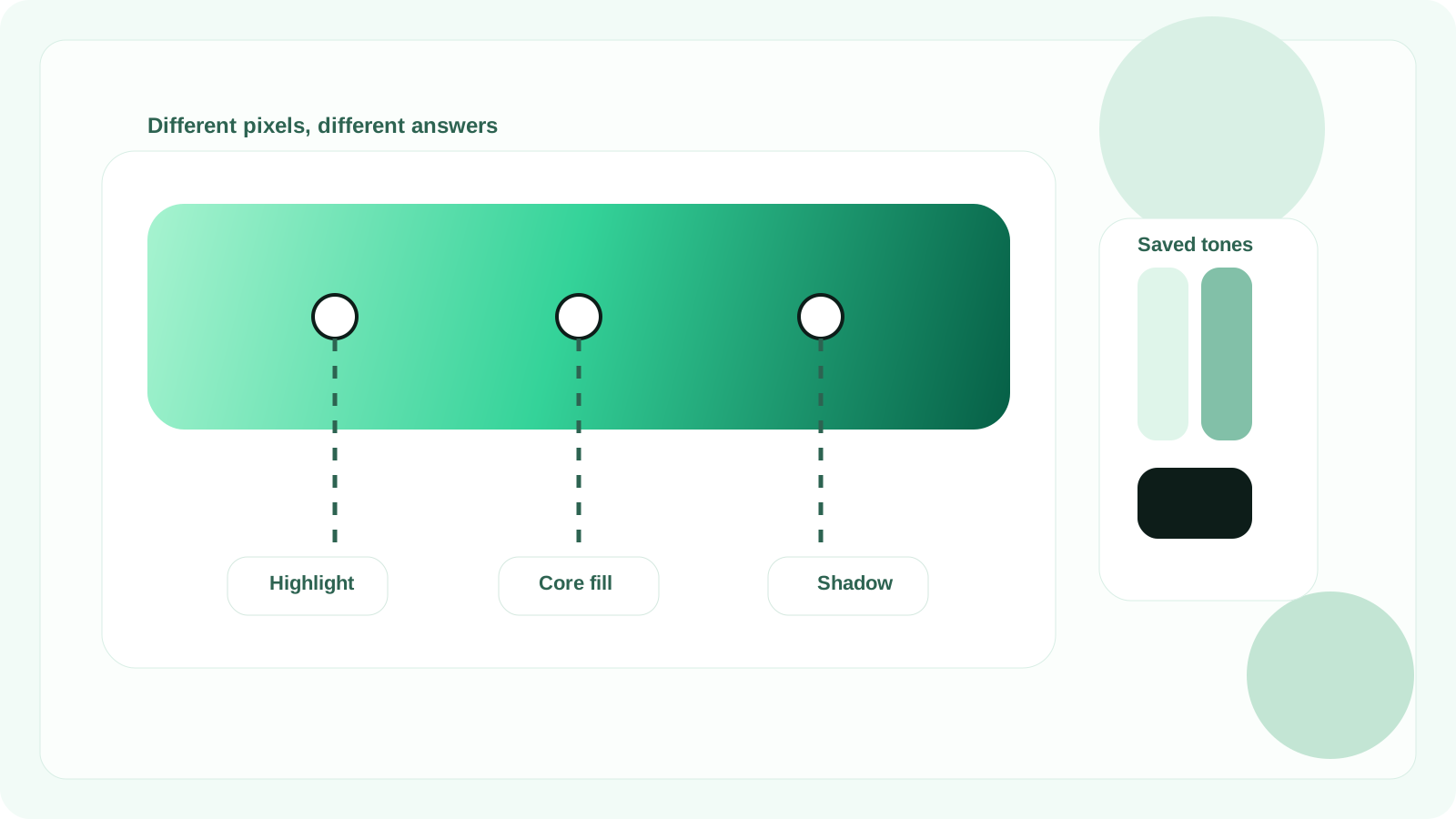
Anyone can use a color picker from image tool. Fewer people use it accurately. That distinction matters when you are trying to match a polished UI, replicate a brand tone, or build a consistent palette.
The good news is that accurate color extraction is not complicated. It just requires a better workflow and a cleaner understanding of what you are trying to extract from the image.
Why image-based color picking matters
A large share of modern color decisions start with a visual reference rather than a blank canvas. Teams collect screenshots, design inspiration, competitor examples, social graphics, and brand assets before they ever define a final palette.
That makes image-based color picking especially useful for UI designers analyzing references, front-end developers implementing from screenshots, marketers matching campaigns, and founders using AI tools to recreate a design direction.
How to use a color picker from image the right way
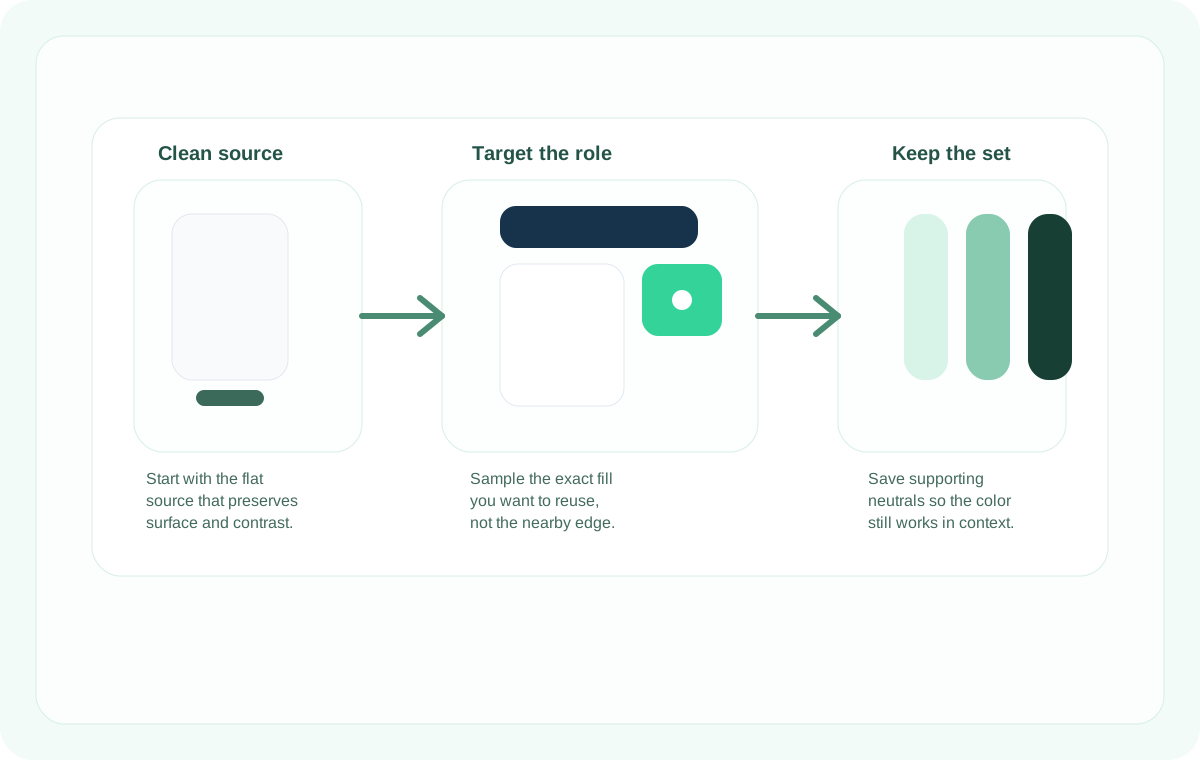
Start with a practical goal. Decide whether you need one button color, a full UI palette, a brand accent from a logo, or a set of colors for a prompt or style guide.
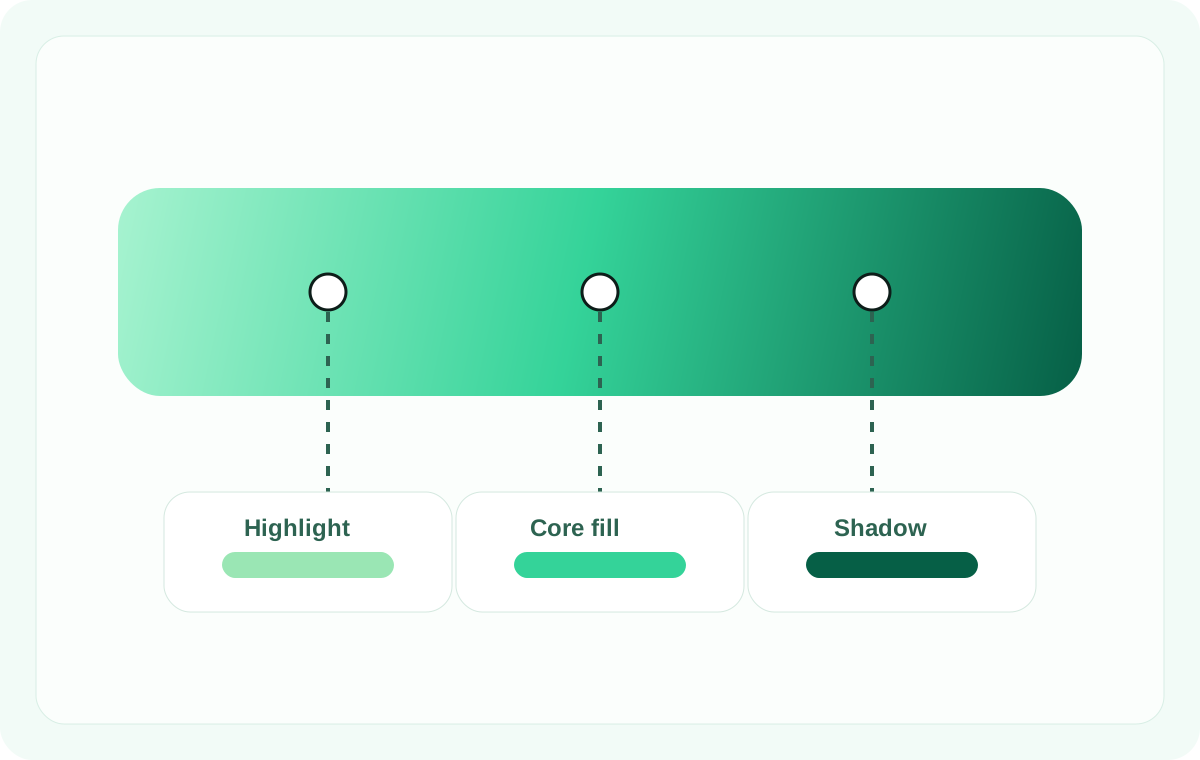
Use the cleanest source file available, sample flat areas first, and watch carefully for gradients, shadows, overlays, and anti-aliased edges that can make one nearby pixel very different from another.
Save multiple colors while you inspect the image so you leave with a reusable system instead of a disconnected sample.
Common reasons a sampled color feels wrong later
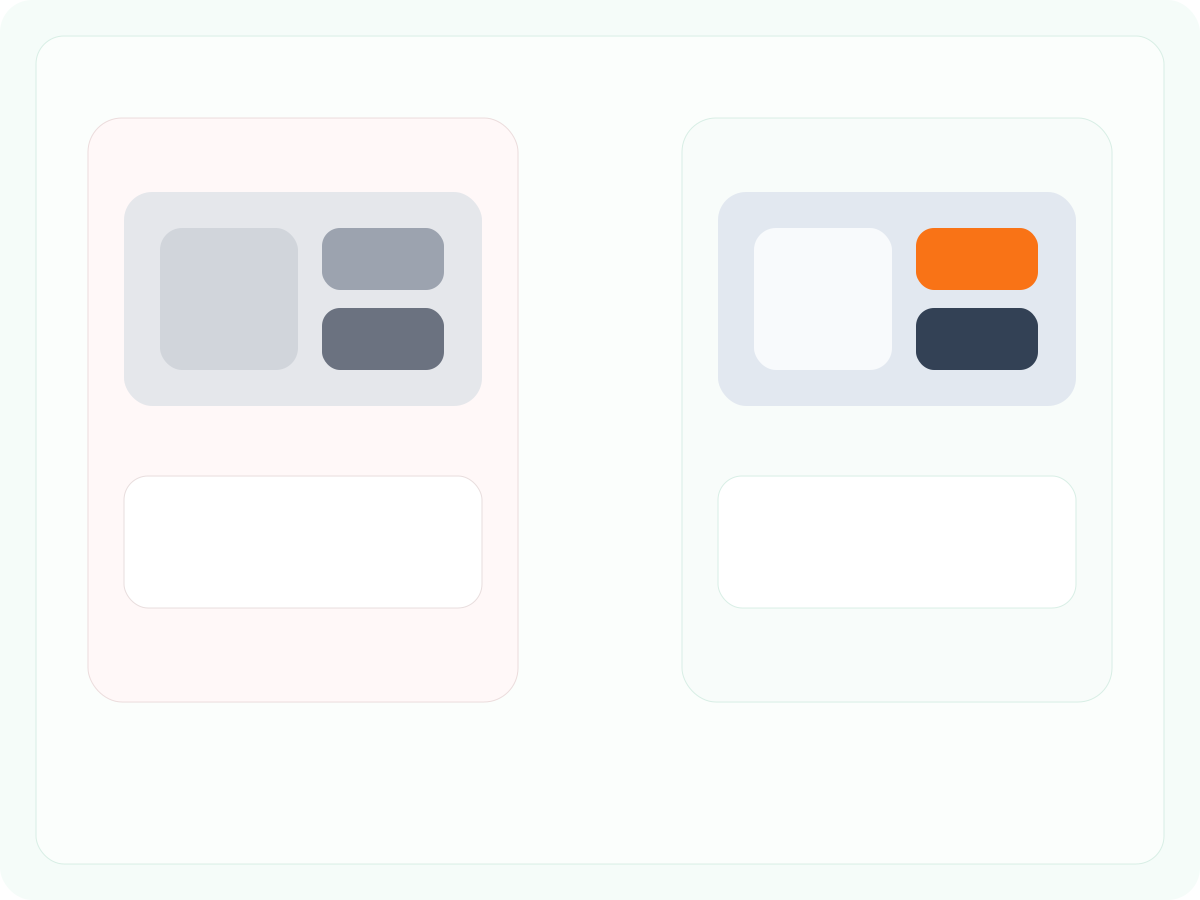
Compression artifacts, anti-aliasing on text and logos, and sampling the wrong layer are the most common causes. In many polished visuals, the apparent color you notice first is actually a combination of base fill, overlay, light effect, or shadow.
Exact sampling helps separate visual perception from the actual encoded value, but you still need to choose the right point in the image.
Why Identify Hexcode is useful here
The strongest image-based color tools do more than return a single value. They support the broader workflow around color extraction.
Identify Hexcode helps users inspect exact colors from real visuals and keep those colors organized as a palette, which makes the result more useful for design, development, branding, and AI-assisted builds.
FAQ
What is the best way to use a color picker from image?
Use a clean source image, sample flat areas first, avoid shadows and compressed edges, and save multiple related colors instead of only one.
Can I use a color picker from image for website screenshots?
Yes. Website screenshots are one of the most common use cases, especially for extracting UI backgrounds, text colors, borders, and CTA accents.
Why do I get different hex values from nearby parts of the same image?
Because many images contain gradients, shadows, overlays, and anti-aliased edges. Small cursor movements can produce different values.
Should I trust colors from a low-resolution image?
Only with caution. Low-resolution or compressed files can distort color accuracy, especially for subtle neutrals and detailed UI elements.